
How to Set Up Your Monitor at the Perfect Height (Step-by-Step)
Getting your monitor height setup right is the single fastest way to eliminate neck pain from working at home. If your neck hurts by the end of the workday, there is a very good chance your screen is too low, too high, or too close — and fixing it takes less than five minutes.
Why Monitor Height Setup Is the Most Overlooked Ergonomic Factor
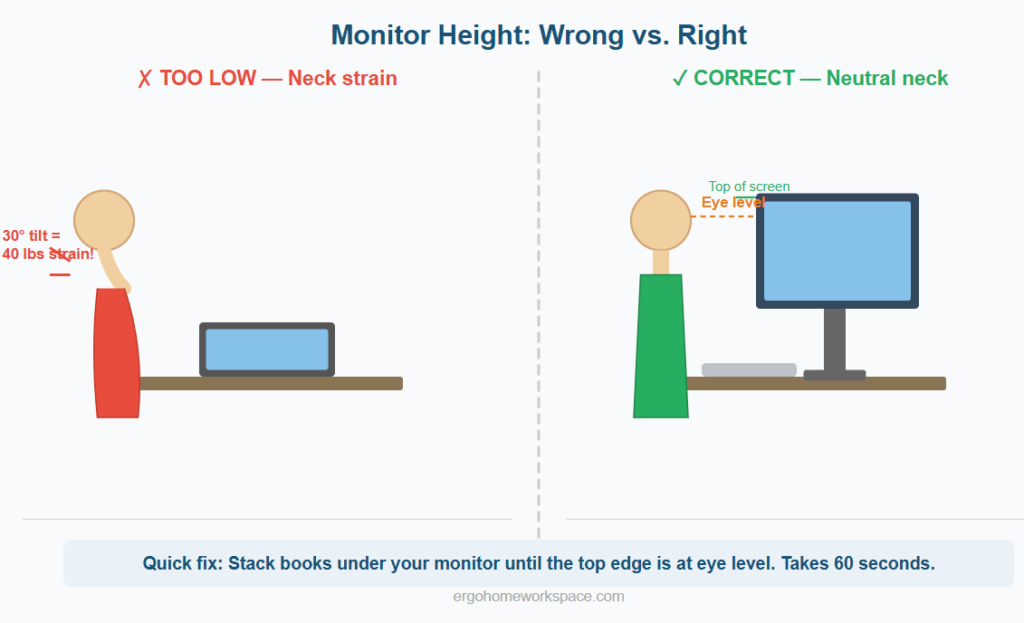
Most people spend hours adjusting their chair and never touch their monitor position. This is a mistake. Your neck supports a head that weighs 10 to 12 pounds, and even a small forward tilt — the kind caused by looking down at a screen that is too low — multiplies the effective load on your cervical spine. According to a study published in Surgical Technology International, at a 15-degree forward tilt, your neck muscles support the equivalent of 27 pounds. At 30 degrees, it is 40 pounds.
This is why laptop users develop neck and upper back pain faster than desktop users. A laptop screen is always too low unless the laptop is elevated, and if you elevate the laptop, the keyboard is too high. The only solution is to separate the screen from the keyboard — either with an external monitor or with a laptop stand plus external keyboard.
The Ideal Monitor Height Setup: Three Rules
Rule one: The top edge of your screen should be at or slightly below your natural eye level when you are sitting upright. This allows your eyes to scan the screen with a comfortable downward gaze of about 15 to 20 degrees, which is the natural resting angle of the eyes.
Rule two: The screen should be approximately one arm’s length away — roughly 20 to 26 inches. If you find yourself leaning forward to read text, increase the font size or zoom level rather than moving the screen closer.
Rule three: Tilt the monitor back 10 to 20 degrees so you are looking at it slightly downward rather than straight on. This angle reduces glare from overhead lights and matches the natural downward gaze angle more comfortably.
Step-by-Step Monitor Height Setup Process
Step 1: Sit in your chair with your back against the lumbar support, feet flat on the floor, and head in a neutral position looking straight ahead. Do not look at your monitor yet — just sit naturally.
Step 2: Close your eyes and relax your neck. Then open your eyes. Where your gaze naturally lands is approximately where the center-to-upper-third of your screen should be. If your eyes land below your current screen, the monitor is too high. If they land above it, the monitor is too low.
Step 3: Adjust the monitor height using a monitor arm, a monitor stand, or even a stack of books as a temporary solution. Raise or lower the screen until the top edge is at your natural eye level.
Step 4: Measure the distance from your eyes to the screen. Extend your arm straight out — your fingertips should just about touch the screen. Adjust forward or backward as needed.
Step 5: Tilt the screen back slightly. Start at about 10 degrees and increase until you notice no glare from ceiling lights.
Step 6: Check for reflections. Look at your monitor when it is turned off — you should not see bright light sources reflected in the screen. If you do, reposition the monitor or add a screen glare filter.
Special Cases: Dual Monitors and Laptops
If you use dual monitors with one as your primary, place the primary monitor directly in front of you and the secondary to the side at a slight angle. Both screens should be the same height. If you use both monitors roughly equally, center the gap between them directly in front of your face and angle both screens inward about 15 degrees.
For laptops, a laptop stand that elevates the screen to eye level is essential for a proper monitor height setup. Pair it with an external keyboard and mouse positioned at desk height. The Nulaxy Laptop Stand and the Rain Design mTower are both solid options that raise a laptop 5 to 8 inches.
Signs Your Monitor Height Setup Is Wrong
If you notice any of these symptoms during or after your workday, your monitor position is likely off: neck pain or stiffness at the end of the day, tension headaches concentrated at the base of your skull, upper back tightness between the shoulder blades, a habit of leaning forward or craning your neck toward the screen, or eye fatigue and dry eyes beyond normal levels.
Fixing your monitor height setup often resolves these issues within a few days. It is one of the fastest ergonomic wins you can achieve in a home office, and it costs nothing if you already have an adjustable setup or a few books to use as a temporary stand.
For the complete picture on setting up every part of your workspace, read our Ergonomic Home Office Setup Guide. And if neck pain persists after adjusting your monitor, check whether your keyboard and mouse positioning might also be contributing — see our guide to Ergonomic Keyboard and Mouse Combos.